
-
Visit Notes – These notes are used to add information pertaining to that specific visit such as arriving late or leaving early. This is also where caregivers can record any visit premiums (billable and payable) during their shift such as reimbursement or groceries. This is found on the ‘Info’ tab
- To view on the web, go into that visit and select ‘View Notes’ on the side-tab.
- To view on the web, go into that visit and select ‘View Notes’ on the side-tab.
-
Care Provider Notes – These are notes for the caregiver and staff to be aware of for their shift, which may include instructions for where to park, a buzz code to enter the client’s home, or a warning that the client’s pet should be not touched. This is found on the ‘Overview’ tab.
- To view these on the web, go into the client’s profile then select Coordination > Care Provider Notes. To add a new note, select ‘+Create a care note’, then either enter a new subject for the note or pick from your drop-down, then enter your note details to be saved.
- To view these on the web, go into the client’s profile then select Coordination > Care Provider Notes. To add a new note, select ‘+Create a care note’, then either enter a new subject for the note or pick from your drop-down, then enter your note details to be saved.
- Service Instructions – Similar to Care Provider Notes, Service Instructions can provide more details and information for field staff as well as standing out more in the AlayaCare mobile app. Please note that unlike Care Provider Notes, Service Instructions are specific either to a client service and/or a visit.
-
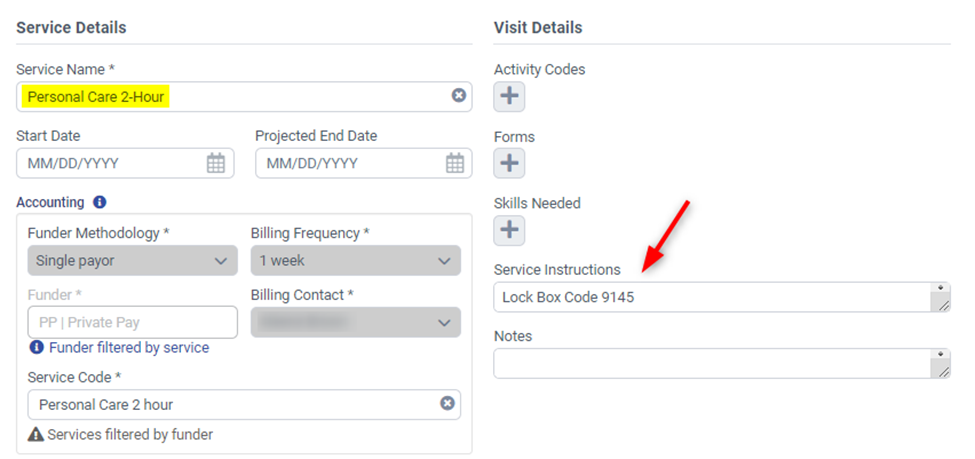
- Service Instructions (Service level) – From the client’s profile > Care Management tab > Services, select a client service to Edit and under ‘Service Instructions’ you can add additional information. In the example below, this information will now show up for all visits that are created against the Personal Care 2-Hour service.
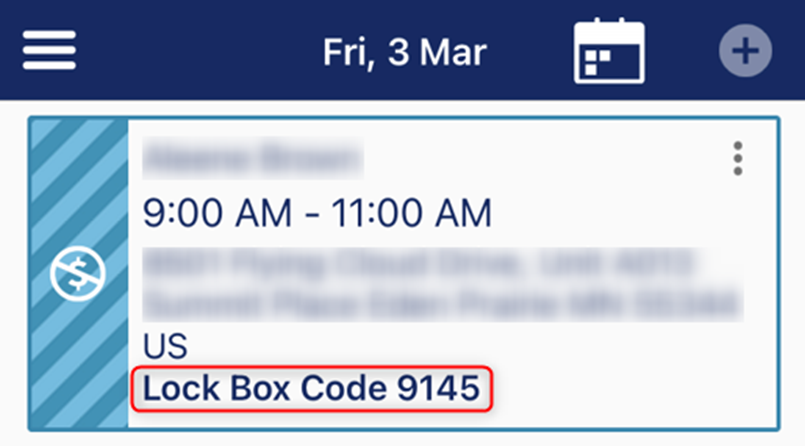
Mobile app view
-
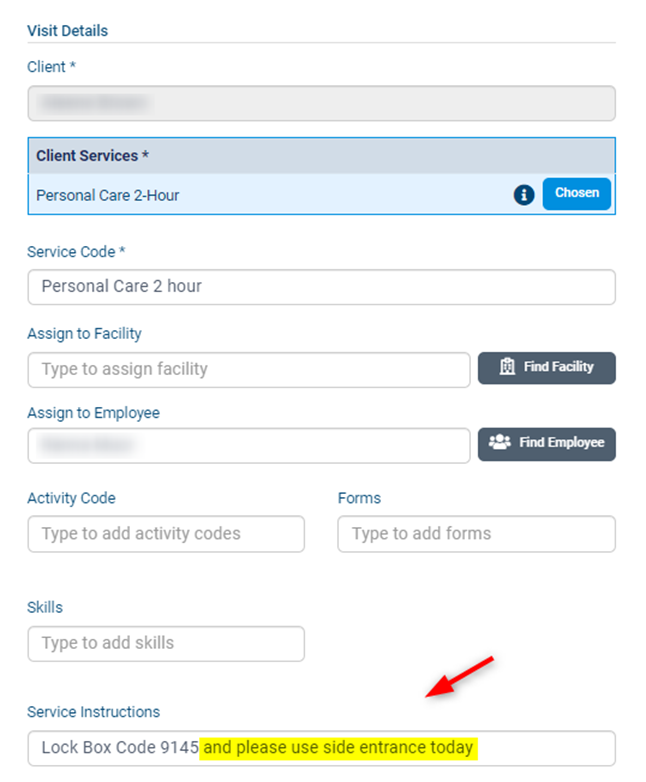
- Service Instructions (Visit level) – If you want to add a note just for a specific shift, go to the client’s Schedule and open that shift to add your visit-specific notes. You will see here that the lock box code information is already populated from the Service level, but we are also adding a reminder that the caregiver will need to access the client’s home using the side entrance for that visit.
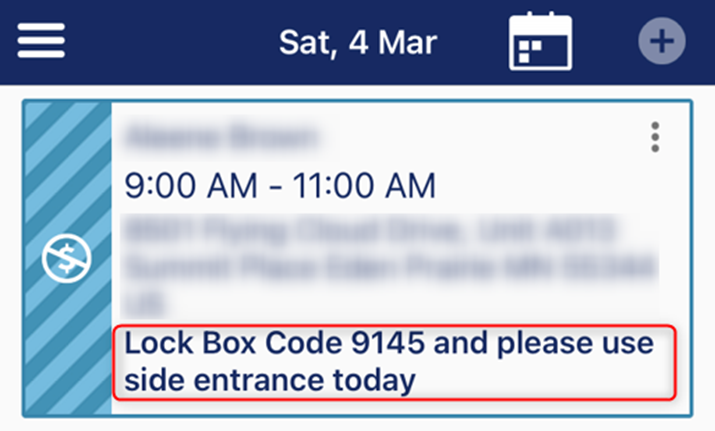
Mobile app view
-
Progress Notes – These notes are client-related and are meant to document client progress. Caregivers can select from the following categories to best describe their note on the client: Activities that added spontaneity to the day; Activities that brought meaning and joy to the client; Client connection with the care team; Nurse Assessment Notes; Overall well-being; Shift note. This is reported on the ‘Progress Notes’ tab.
- To view these notes on the web, go into the client’s profile then select Care Documentation > Progress Notes. Progress Notes are automatically set to show notes within the last month. Adjust filters as needed to show relevant notes.
- To view these notes on the web, go into the client’s profile then select Care Documentation > Progress Notes. Progress Notes are automatically set to show notes within the last month. Adjust filters as needed to show relevant notes.
Comments
0 comments
Article is closed for comments.