
Once you’ve approved a visit, there may be a situation where the approved hours may need to be updated for various reasons like the clocked time spans two days rather than one. There are two locations to update the approved hours.
From the "Visit Approval" screen:
This screen is viewable from the following locations:
- Schedules > Workforce Management > Visit Approval
- Accounting > Billing > Billing Period > View > Visits
- Accounting > Payroll > View / Prepare > Visit Approval
Follow the steps outlined below:
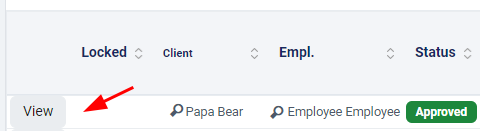
- Click the “View” button next the Visit
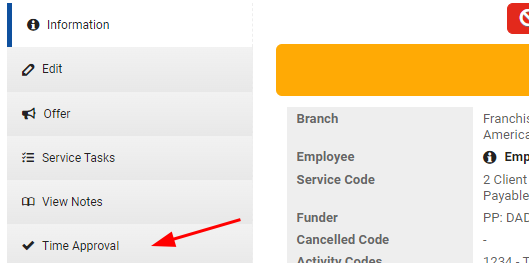
- Click on the "Time Approval" tab
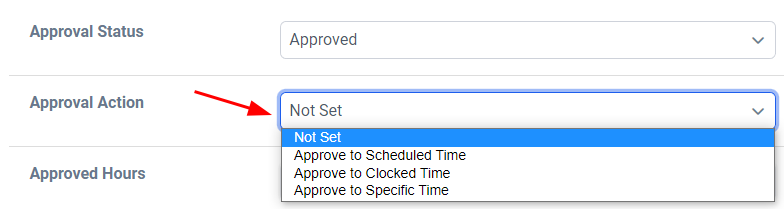
- Click the dropdown for "Approval Status" if you need to change it "Rejected". Otherwise, select the "Approval Action" and change it to the desired outcome:
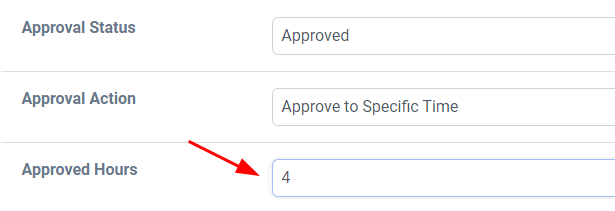
- Verify the Approved Hours are correct
- Click

From a generated invoice:
If you’ve already generated an invoice, make sure the invoice has a draft status (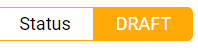 ). If it’s in a “Sent” status, you will need to click “Void” first.
- Click the "Ref. ID" (known as Visit ID) under the Billed Items section
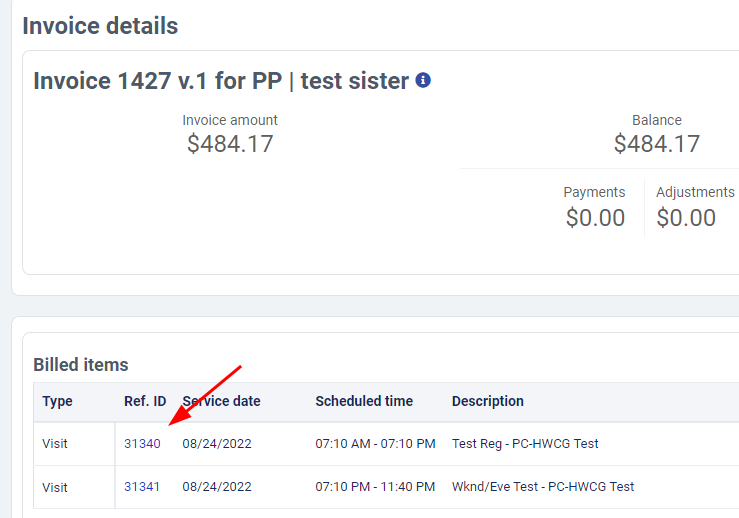
- Click on the "Time Approval" tab
- Click the dropdown for "Approval Status" if you need to change it "Rejected". Otherwise, select the "Approval Action" and change it to the desired outcome:
- Verify the Approved Hours are correct
- Click
- If necessary, be sure to click
 to update the invoice as necessary
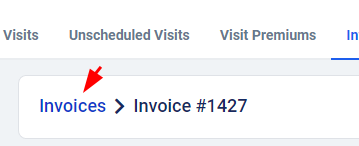
 - Click the "Invoices" breadcrumb to return to the Invoices screen
Comments
0 comments
Article is closed for comments.